Web Console
The web console is a page for managing a running server. Open /console, for
example http://localhost:8085/console.
Who can use it
When the authentication module is loaded,
the console shows only a login until you log in, and only users with the
console privilege or ALL can use it. Other users see that their account can't
manage the server. The login is shared by all tabs in the browser. While the
console is in use, it renews the login with the module's refresh token, so you
log in again only after the refresh token expires (the authentication module's
REFRESH_TOKEN_EXPIRE_MINUTES). Logging out ends the session on the server and
in every tab.
The console privilege is MANAGE_WEB_CONSOLE, or the name you set in
CHACC_ADMIN_PRIVILEGE. ChaCC registers it with the authentication module the
first time the console is opened, so you only need to give it to people. Use a
privilege that only grants the console.
The same rule protects what the console uses: the core module routes, the
services and restart, and so chacc deploy.
To give someone access, give them a role with the console privilege
(PUT /rbac/users/{user_id}/roles). If you change CHACC_ADMIN_PRIVILEGE
later, grant the new privilege: users with only the old one lose access.
Without the authentication module
Set a web console key on the server:
The console then shows only a key prompt until you enter it (remembered by the
browser until you log out), and the core
routes need it in the X-ChaCC-Key header (as typed, or URL-encoded). For chacc deploy, set
CHACC_DEPLOY_KEY to the same value, or type it when asked. The authentication
module always wins: while it is loaded, the key isn't accepted.
The key can contain any characters. Use at least 8: a shorter key still works, but the server log warns about it.
With neither, the console is open to anyone who can reach the server. It shows
a warning, and so do the server log and chacc deploy.
To also limit the console by address, see Behind a reverse proxy.
Modules
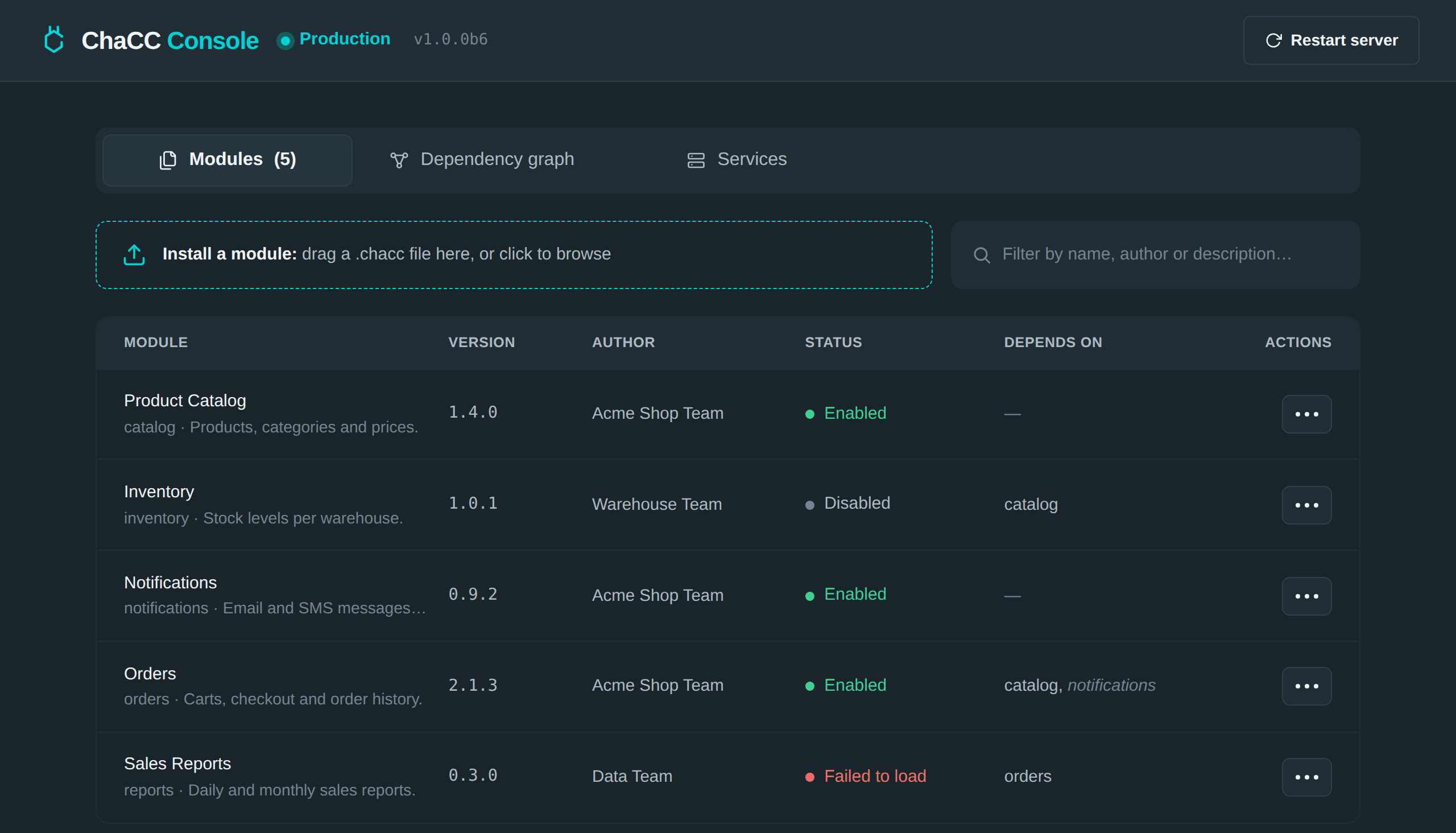
To install a module, drag its .chacc file onto the install area, or click it to
choose the file. Build the file with chacc build.
Status shows whether a module is on:
| Status | Meaning |
|---|---|
| Enabled | On. |
| Disabled | Off. |
| Failed to load | Turned off because it failed to start. Open its details to see why. |
| Not loaded | On, but a module it requires isn't installed. |
In Depends on, optional modules are in italics, and a module that isn't installed is marked.
The ⋮ button on each row opens the module's actions:
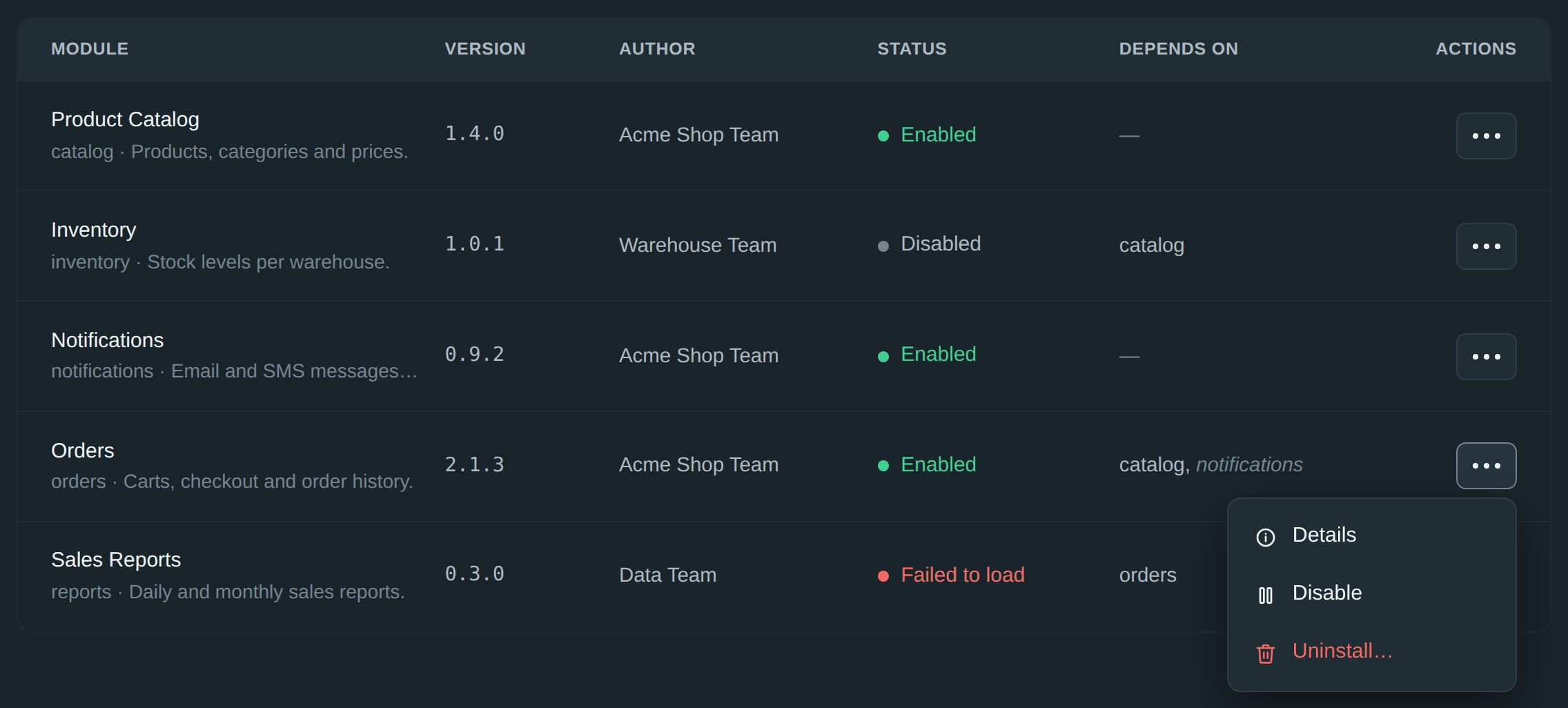
Installing, enabling, disabling and uninstalling take effect after a restart. The console then reminds you to restart. See Restart the server.
Module details
Click a module's name, or choose Details in its menu.
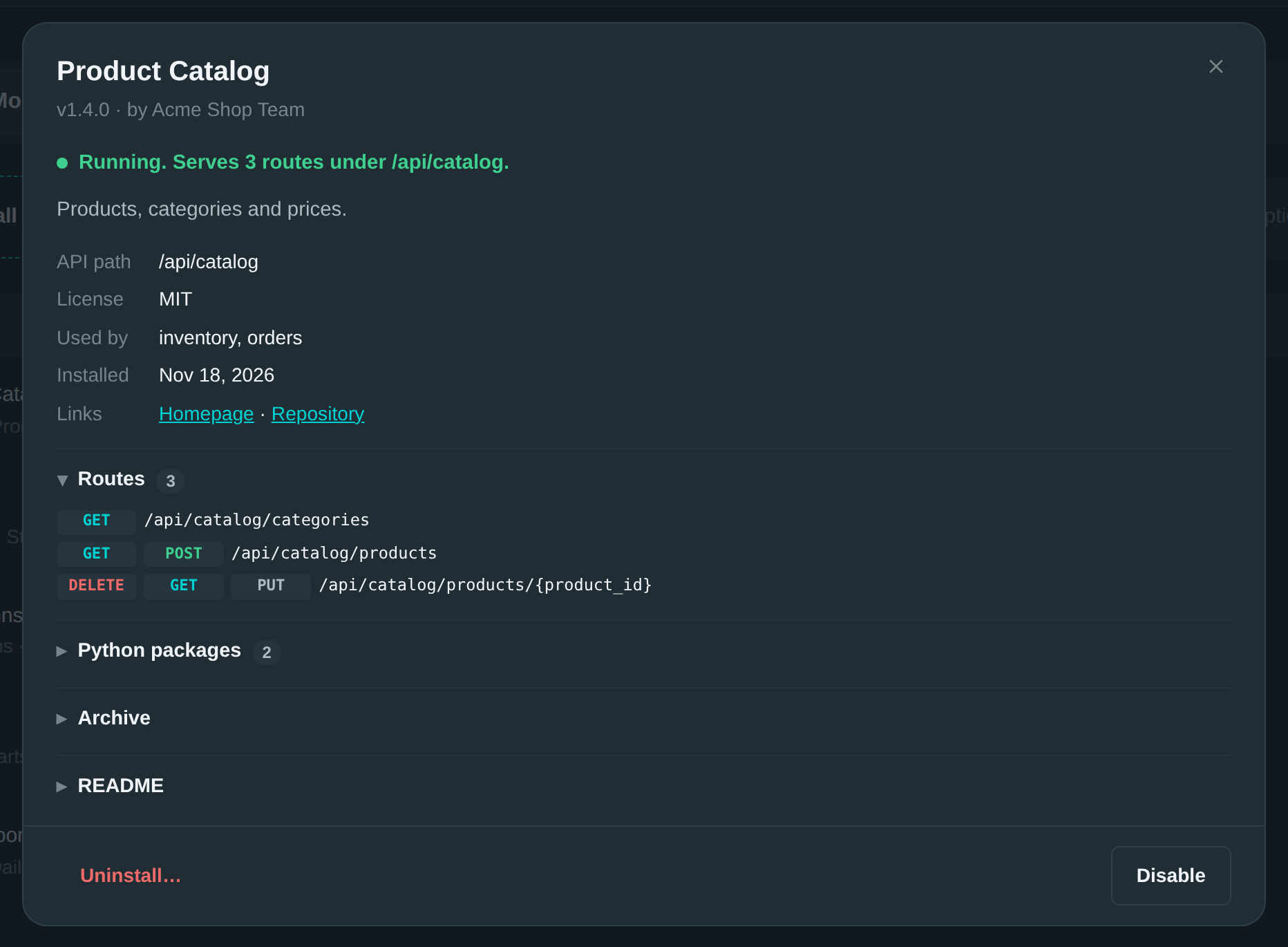
The popup shows:
- State, for example how many routes the module serves and where.
- Facts from
module_meta.json: license, links, the modules it requires and the modules that use it, and the ChaCC version it needs. - Routes, Python packages (with the installed versions), Archive (file, size and SHA-256) and README.
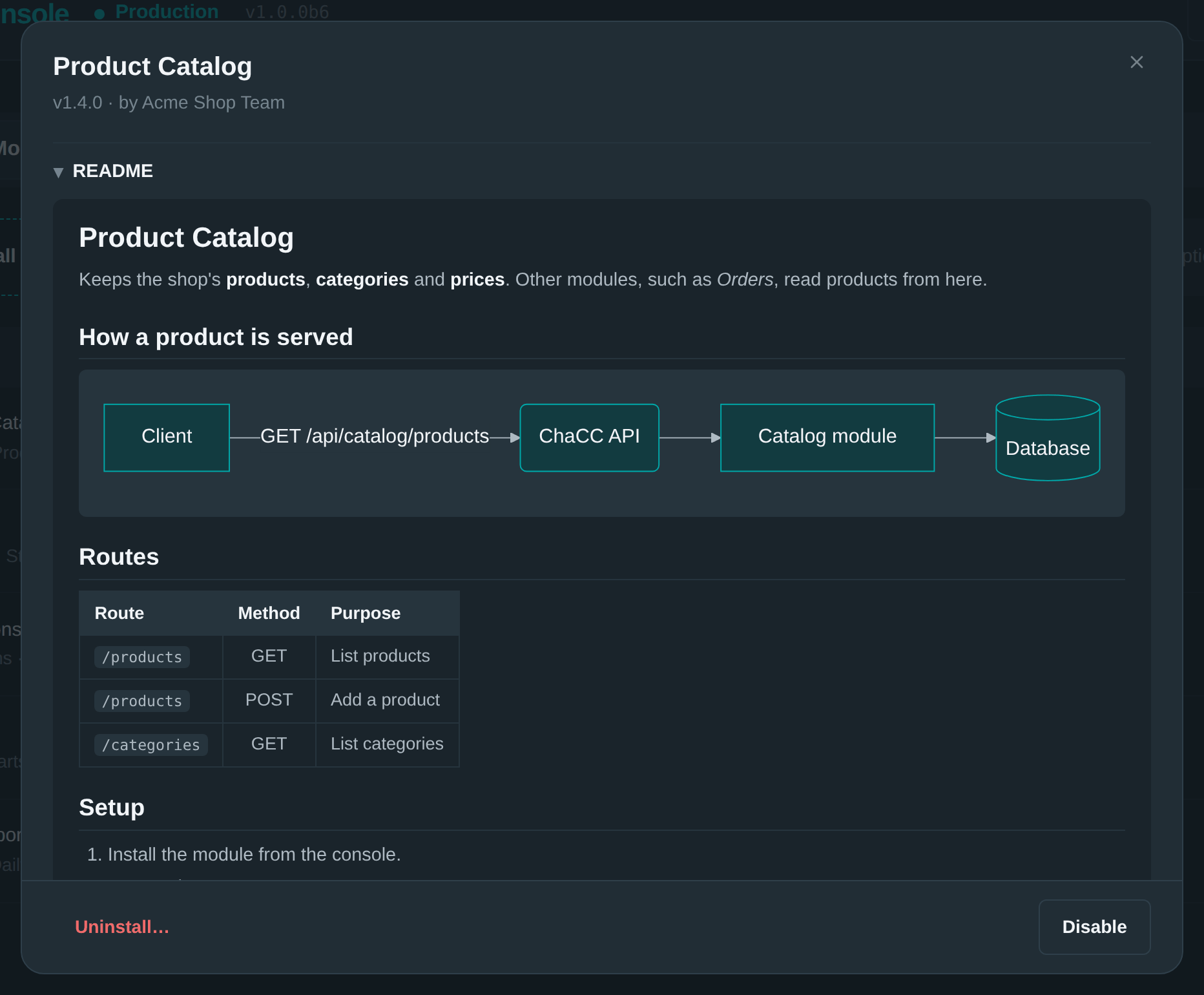
The README is shown as formatted Markdown, and mermaid code blocks are drawn as
diagrams. See Module layout for what module authors
can use.
When a module fails to start, its details say why:
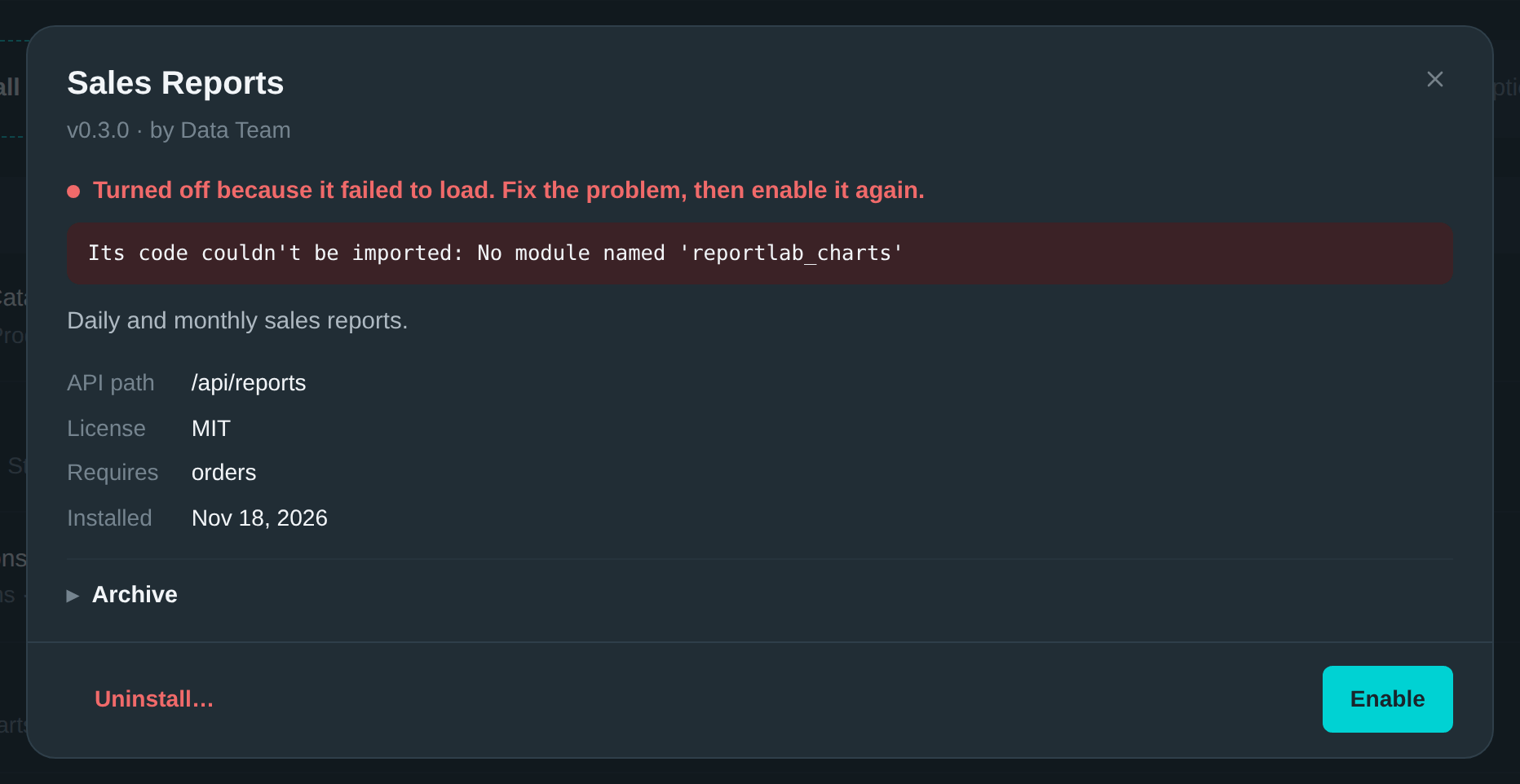
In production the module stays off. Fix the problem, then enable it and restart. The reason is kept across restarts until the module loads.
To share a module's details, use the link /console#module=<name>.
Dependency graph
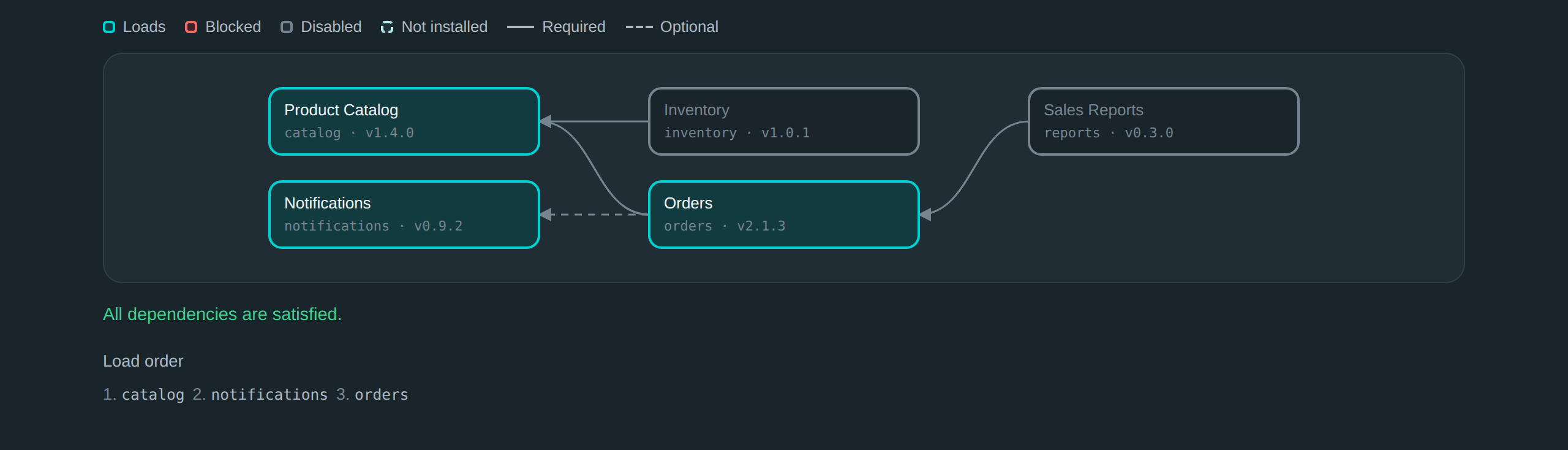
Each module is a box. Arrows point from a module to the modules it depends on; dashed arrows are optional dependencies. A module that can't load is red, with the reason and how to fix it below the graph. Load order is the order the server loads the modules in.
Services
The Services tab checks the database, Redis, rate limiting and the server. It checks again every 30 seconds while the console is open, or when you click Check again.
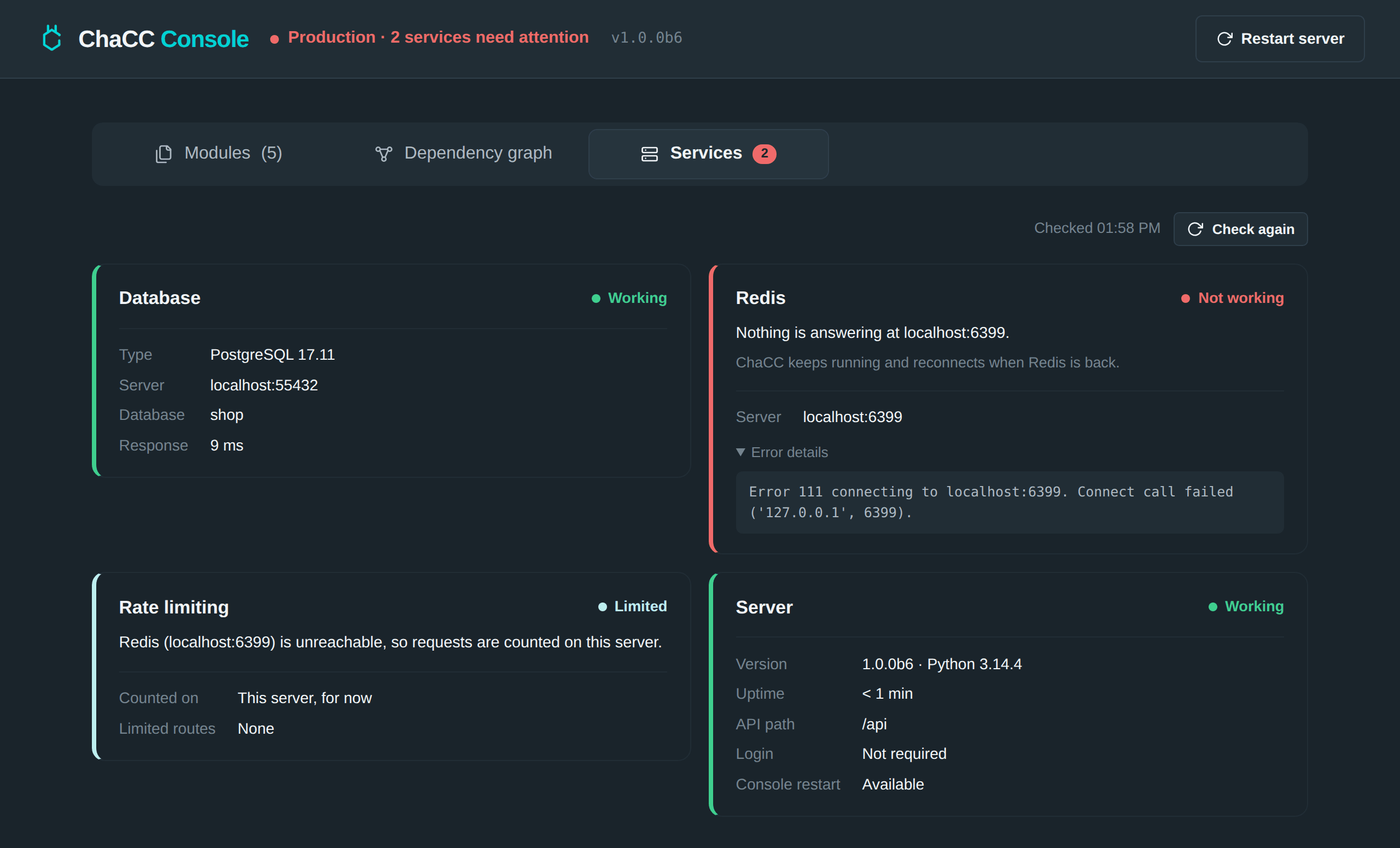
When a service is not working, or working with a fallback (Limited), the tab shows a count and the top bar names the problem. Click the top bar to open the tab. Error details has the original error. Passwords are never shown.
The same checks are available as GET /api/system/services.
Restart the server
Restart server in the top bar restarts the server and waits until it's back.
It needs the server to be started with chacc run server, and is off in
development mode, where the server reloads by itself. See
Automatic Restarts.
Development mode
In development mode the server loads modules from plugins/, while the module
list shows the modules installed in the database. The dependency graph shows
the modules in plugins/.